 Skip to content
Building solid navigation menus is a skill that separates a novice interface from a pro.
You’ve probably found yourself in this spot before where you’re developing a new website and now it’s time to build the navigation. At first, it might seem straightforward, a handful of links along the top of the screen. However, after adding some “nice to haves” such as dropdowns, responsiveness, and a mega menu for a product category section, what was once a simple header has turned into a full fledged engineering challenge. I have personally experienced this too many times to count. The best strategy to survive navigation menus is to have a set of dependable, accessible navigation patterns to draw upon. You shouldn’t have to reinvent the wheel each time.
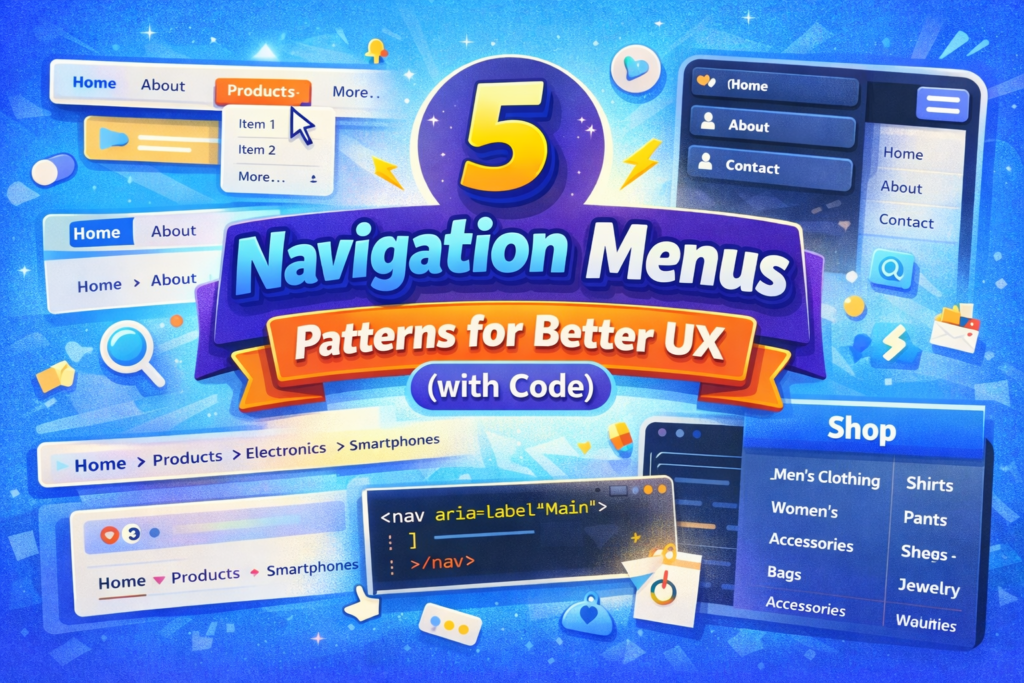
Let’s go over five basic navigation patterns that I find myself consistently using. Each of these navigation patterns addresses a specific navigation issue, and each of them includes the accessibility considerations built in, so you don’t have to spend time figuring them out.
1. The Basic Horizontal Navigation Bar
This is your base line. Every website needs it. There should be a logo on the left, links on the right, possibly a login button. It is the foundation.
Problem: A simple line of links that needs to be both responsive and accessible.
Pattern: Flexbox with a mobile first design.
html
<header class="site-header">
  <div class="logo">
    <a href="/">SiteName</a>
  </div>
  <nav class="primary-nav" aria-label="Main">
    <ul>
      <li><a href="/">Home</a></li>
      <li><a href="/about">About</a></li>
      <li><a href="/services">Services</a></li>
      <li><a href="/contact">Contact</a></li>
    </ul>
  </nav>
  <button class="mobile-menu-toggle" aria-expanded="false">
    <span class="sr-only">Menu</span>
    ☰
  </button>
</header>
css
.site-header {
  display: flex;
  justify-content: space-between;
  align-items: center;
  padding: 1rem 2rem;
  background: #fff;
  box-shadow: 0 2px 4px rgba(0,0,0,0.1);
}

.primary-nav ul {
  display: flex;
  gap: 2rem;
  list-style: none;
  margin: 0;
  padding: 0;
}

.primary-nav a {
  text-decoration: none;
  color: #333;
  font-weight: 500;
  padding: 0.5rem 0;
  border-bottom: 2px solid transparent;
  transition: border-color 0.2s;
}

.primary-nav a:hover,
.primary-nav a:focus {
  border-bottom-color: #0066cc;
}

.primary-nav a[aria-current="page"] {
  border-bottom-color: #0066cc;
  color: #0066cc;
}

.mobile-menu-toggle {
  display: none; /* Hidden on desktop */
}
Why it works: By using a with an aria-label=”Main” gives screen readers the proper context. The [aria-current=”page”] attribute lets users know exactly which page they are currently viewing. The Flexbox layout takes care of spacing cleanly, and the hover/focus states are both apparent and accessible. For more information about using semantic HTML, the MDN Guide on the nav element is a fantastic resource.
2. The Drop Down Menu (with Keyboard Support)
As soon as you require sub-pages, you need a drop down menu. However, drop down menus are difficult for accessibility if not implemented correctly.
Problem: A drop down menu that is displayed on hover and also works for keyboard only users.
Pattern: Nested list with ARIA attributes, and special CSS rules.
html
<nav class="primary-nav" aria-label="Main">
  <ul>
    <li><a href="/">Home</a></li>
    <li class="dropdown">
      <button
        class="dropdown-toggle"
        aria-expanded="false"
        aria-haspopup="true"
      >
        Products
        <span aria-hidden="true">▼</span>
      </button>
      <ul class="dropdown-menu" aria-label="Products submenu">
        <li><a href="/products/software">Software</a></li>
        <li><a href="/products/hardware">Hardware</a></li>
        <li><a href="/products/services">Services</a></li>
      </ul>
    </li>
    <li><a href="/about">About</a></li>
  </ul>
</nav>
css
.dropdown {
  position: relative;
}

.dropdown-menu {
  position: absolute;
  top: 100%;
  left: 0;
  min-width: 200px;
  background: white;
  box-shadow: 0 8px 16px rgba(0,0,0,0.1);
  border-radius: 4px;
  padding: 0.5rem 0;
  opacity: 0;
  visibility: hidden;
  transform: translateY(-10px);
  transition: opacity 0.2s, transform 0.2s, visibility 0.2s;
  z-index: 100;
}

.dropdown:hover .dropdown-menu,
.dropdown:focus-within .dropdown-menu,
.dropdown-menu:focus-within {
  opacity: 1;
  visibility: visible;
  transform: translateY(0);
}

.dropdown-menu a {
  display: block;
  padding: 0.5rem 1rem;
  color: #333;
  text-decoration: none;
}

.dropdown-menu a:hover,
.dropdown-menu a:focus {
  background: #f5f5f5;
}
Why it works: The :focus within pseudo class is the secret ingredient. This keeps the menu open while the user is tabbing through the submenu items. The aria expanded attribute on the button informs screen readers whether the menu is opened. Always use a element for the dropdown toggle, and not a link, since the button performs an action (open/close the content), whereas a link would perform a navigation action. For more information regarding accessible dropdowns, please consult the WebAIM dropdown menu guide.
3. The Mobile Hamburger Menu
When the screen size decreases to a certain point (usually around 768 pixels), horizontal space disappears. That’s why the hamburger icon is such a wonderful solution, but it requires a lot of planning to execute well.
Problem: A compact mobile menu that is easy to show/hide.
Pattern: Off-screen canvas menu that is shown/hidden via a button.
css
@media (max-width: 768px) {
  .mobile-menu-toggle {
    display: block;
    background: none;
    border: none;
    font-size: 1.5rem;
    cursor: pointer;
  }

  .primary-nav {
    position: fixed;
    top: 0;
    right: -100%;
    width: 80%;
    max-width: 400px;
    height: 100vh;
    background: white;
    box-shadow: -2px 0 8px rgba(0,0,0,0.1);
    padding: 4rem 2rem;
    transition: right 0.3s ease;
    z-index: 1000;
  }

  .primary-nav[data-visible="true"] {
    right: 0;
  }

  .primary-nav ul {
    flex-direction: column;
    gap: 1.5rem;
  }

  .dropdown-menu {
    position: static;
    box-shadow: none;
    opacity: 1;
    visibility: visible;
    transform: none;
    padding-left: 1rem;
  }
}
Javascript
const toggle = document.querySelector('.mobile-menu-toggle');
const nav = document.querySelector('.primary-nav');

toggle.addEventListener('click', () => {
  const isVisible = nav.getAttribute('data-visible') === 'true';
  nav.setAttribute('data-visible', !isVisible);
  toggle.setAttribute('aria-expanded', !isVisible);

  // Prevent body scroll when menu is open
  document.body.style.overflow = isVisible ? '' : 'hidden';
});
Why it works: The menu slides in from the side, maintaining a clear visual connection. The data visible attribute determines whether the menu is visible or not, and it syncs up with the toggle’s aria expanded state. Locking body scroll prevents accidental scrolling under the open menu. This pattern is very strong and accessible.
4. The Mega Menu
If you have many sub pages (such as an e-commerce store that contains categories and subcategories), a basic dropdown does not have enough room for all of the options. A mega menu presents the options in columns.
Problem: Organize and present many navigation options in an orderly and easily scanned manner.
Pattern: A wide dropdown with many columns.
html
<li class="mega-dropdown">
  <button class="mega-toggle" aria-expanded="false">
    Shop
    <span aria-hidden="true">▼</span>
  </button>
  <div class="mega-menu" aria-label="Shop categories">
    <div class="mega-column">
      <h3>Men's Clothing</h3>
      <ul>
        <li><a href="/men/shirts">Shirts</a></li>
        <li><a href="/men/pants">Pants</a></li>
        <li><a href="/men/shoes">Shoes</a></li>
      </ul>
    </div>
    <div class="mega-column">
      <h3>Women's Clothing</h3>
      <ul>
        <li><a href="/women/dresses">Dresses</a></li>
        <li><a href="/women/tops">Tops</a></li>
        <li><a href="/women/shoes">Shoes</a></li>
      </ul>
    </div>
    <div class="mega-column">
      <h3>Accessories</h3>
      <ul>
        <li><a href="/accessories/bags">Bags</a></li>
        <li><a href="/accessories/jewelry">Jewelry</a></li>
        <li><a href="/accessories/watches">Watches</a></li>
      </ul>
    </div>
  </div>
</li>
css
.mega-menu {
  position: absolute;
  left: 0;
  width: 100%;
  background: white;
  box-shadow: 0 8px 16px rgba(0,0,0,0.1);
  padding: 2rem;
  display: grid;
  grid-template-columns: repeat(auto-fit, minmax(200px, 1fr));
  gap: 2rem;
  opacity: 0;
  visibility: hidden;
  transform: translateY(-10px);
  transition: all 0.2s;
  z-index: 100;
}

.mega-dropdown:hover .mega-menu,
.mega-dropdown:focus-within .mega-menu {
  opacity: 1;
  visibility: visible;
  transform: translateY(0);
}

.mega-column h3 {
  margin: 0 0 1rem 0;
  font-size: 1rem;
  color: #666;
}

.mega-column ul {
  list-style: none;
  padding: 0;
  margin: 0;
}

.mega-column li {
  margin-bottom: 0.5rem;
}

.mega-column a {
  color: #333;
  text-decoration: none;
}
Why it works: CSS Grid makes the column layout easy and responsive. The h3 headings provide a hierarchical organization of the content for both screen reader users and visually scanning users. The same hover and focus within logic maintains accessibility.
5. Breadcrumb Navigation
Users may occasionally be quite far into your site. Breadcrumbs help the user determine their location in your site and assist them in getting back.
Problem: Provide users with a way to understand the site’s hierarchy and navigate within it.
Pattern: Ordered List with dividers.
html
<nav aria-label="Breadcrumb" class="breadcrumbs">
  <ol>
    <li><a href="/">Home</a></li>
    <li><a href="/products">Products</a></li>
    <li><a href="/products/electronics">Electronics</a></li>
    <li aria-current="page">Smartphones</li>
  </ol>
</nav>
css
.breadcrumbs ol {
  display: flex;
  flex-wrap: wrap;
  list-style: none;
  padding: 0;
  margin: 0;
}

.breadcrumbs li {
  display: flex;
  align-items: center;
}

.breadcrumbs li:not(:last-child)::after {
  content: "/";
  margin: 0 0.5rem;
  color: #999;
}

.breadcrumbs a {
  color: #0066cc;
  text-decoration: none;
}

.breadcrumbs a:hover,
.breadcrumbs a:focus {
  text-decoration: underline;
}

.breadcrumbs [aria-current="page"] {
  color: #333;
  font-weight: 500;
}
Why it works: Using an (Ordered List) is semantically correct because breadcrumbs form a sequence. The aria-label=”Breadcrumb” tells the screen readers that the navigation elements are breadcrumb navigation. The aria-current=”page” attribute is applied to the last element in the breadcrumb trail to inform screen readers that the current page is the last page in the breadcrumb trail, not a navigation target. The CSS pseudo element creates clean visual separator
Key Concepts for Designing Navigation Menus
I have developed this check list for designing navigation menus that are both successful and accessible.
☑ Use Semantic HTML: Always include main navigation in a <nav>, Use for a list of links. Use <button> for link lists, instead of links.
☑ Add Aria Attributes: The addition of aria-label, aria-expanded, aria-haspopup, and aria-current transforms decent navigation into excellent accessible navigation.
☑ Provide Keyboard Accessible Navigation: All navigation menus must be accessible via the Tab key. Use :focus-visible for clear focus indicators.
☑ Function at All Resolutions: Begin with mobile-first CSS. Create additional complexity via media queries, rather than beginning with desktop and attempting to remove features.
☑ Test With Screen Reader Technology: If you don’t have access to screen reader technology, Browser Extensions like ChromeVox allow you to experience how your navigation menu sounds to users who depend on them.
Start with the standard horizontal nav. Add the mobile menu. Once you have more complex requirements, add the drop down or mega menus using the examples provided.
Creating navigation menus that function effectively is among the most impactful things you can do as a frontend developer. Navigation is how users understand the structure of your site and navigate your content. Make navigation clear, accessible, and functional at all resolutions. Users will appreciate your efforts, even though they may never consciously recognize them.
New to HTML? Start Here: HTML Tutorial for Beginners: Your Complete Introduction to HTML Basics
New to CSS? Start Here: CSS Introduction: Master 5 Core Concepts Easily
[INSERT_ELEMENTOR id=”122″]

