 Skip to content
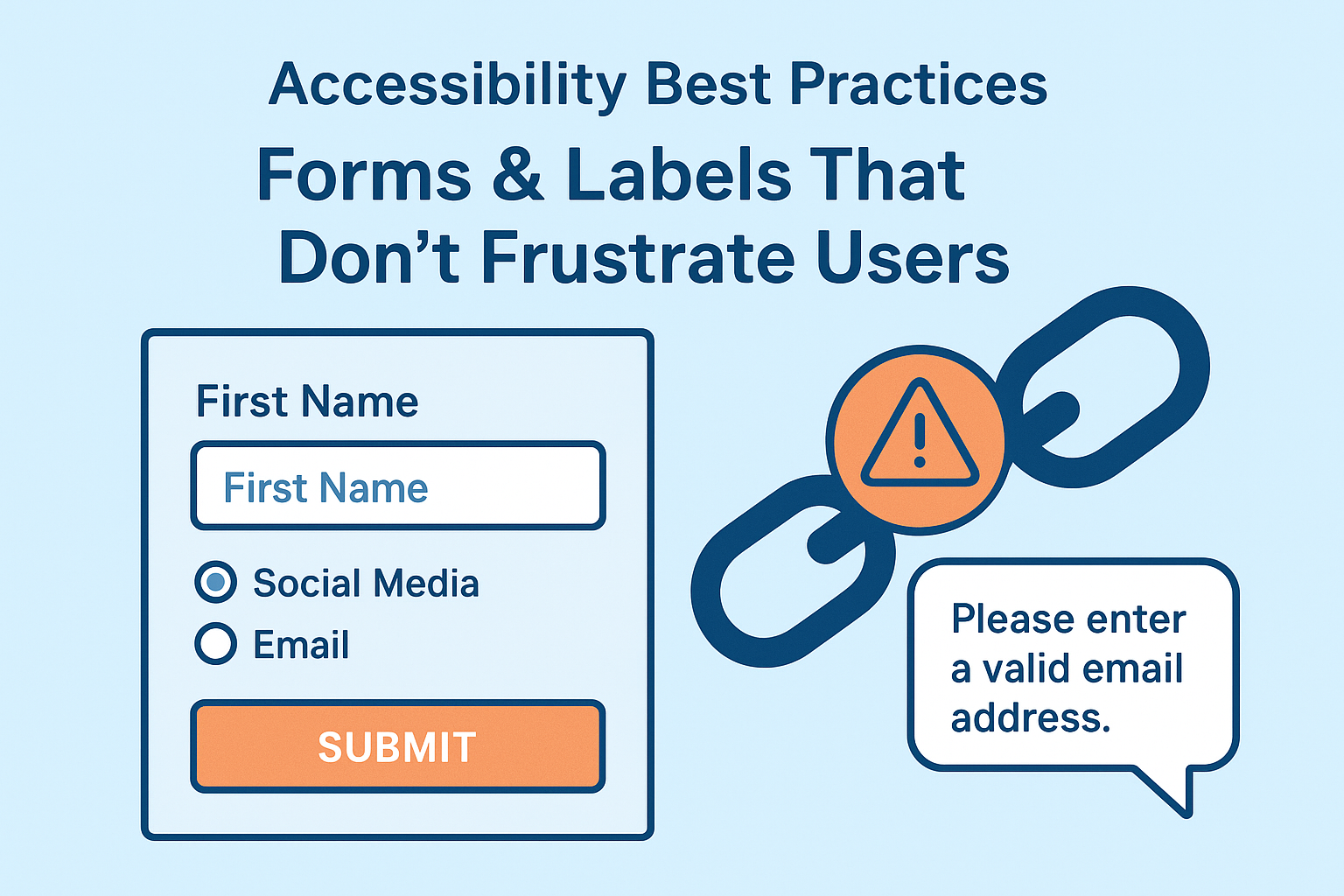
Accessibility Best Practices: Forms & Labels That Don’t Frustrate Users
Accessibility Best Practices: Forms & Labels are essential for creating inclusive digital experiences. We’ve all faced that online form. You’re halfway through, you hit tab, and your cursor just vanishes. A cryptic red error pops up with no explanation. For most, it’s a minor headache. For someone using a screen reader or who can’t use a mouse, it’s a complete dead end. They’ll leave, and you’ve lost a user.
I learned this lesson not from a guideline, but from a moment of shared frustration. I was showing a new internal tool to a blind colleague. He navigated to the first field with his screen reader, and we were met with silence. My beautifully designed form, with its clever placeholder text, was a blank wall to him. He had no idea what to type. That single moment changed my entire perspective. Following these Accessibility Best Practices for Forms & Labels isn’t about compliance checkboxes, it’s about building a door that’s open to everyone.
And here’s the best part: the tricks that make a form accessible are the same ones that make it easier and more pleasant for everyone to use. It’s a total win-win.
Core Accessibility Best Practices: The Foundation of Proper Labels
If you only remember one thing, let it be this: use the <label> tag correctly. This isn’t just decorative text. It’s a vital, programmatic link that tells the browser and assistive technology, “This text describes that input.” This is the most fundamental of all Accessibility Best Practices for Forms & Labels.
The Common Mistake (Using Placeholders as Labels)
html
<!-- Don't do this -->
<input type="text" placeholder="First Name">
It looks clean, sure. But the moment you start typing, the hint vanishes. For someone with a cognitive disability, or anyone who gets distracted, the context is gone. For a screen reader, it might not be announced at all. You’re left with a mysterious, empty box.
The Accessible Solution (A Real Connection)
The right way is to forge a direct link between the label and the input.
html
<label for="first-name">First Name</label>
<input type="text" id="first-name" name="first-name">
Now, a screen reader will clearly announce, “First Name, edit text.” But the magic is that this helps all your users. Clicking on the words “First Name” jumps the cursor into the input field. It’s a bigger click target, which is great for touchscreens, and just a nicer experience for everyone.
Grouping for Clarity: Essential Accessibility Best Practices for Forms
When you have a set of radio buttons or checkboxes, you can’t just list them. You need to provide context for the whole group. A screen reader user needs to hear the question before the answers.
The Confusing Way (Losing Context)
html
<p>How did you hear about us?</p>
<input type="radio" id="social" name="source">
<label for="social">Social Media</label>
A screen reader might just say, “Social Media, radio button, not selected.” The user is left wondering, “Social media for what?”
The Clear Way (Using Fieldset and Legend)
Think of <fieldset> as a container for related items, and <legend> as its title. This is a critical technique for Accessibility Best Practices for Forms & Labels.
html
<fieldset>
    <legend>How did you hear about us?</legend>
    <input type="radio" id="social" name="source">
    <label for="social">Social Media</label>
</fieldset>
Now, a screen reader announces, “How did you hear about us? Group. Social Media, radio button, 1 of 2.” The entire interaction makes perfect sense.
Being a Helpful Guide: Instructions and Error Handling
A good form is like a helpful assistant. It gives hints before you need them and clearly explains mistakes.
Providing Hints with aria-describedby
Sometimes a field needs extra explanation. A password field is the classic example.
html
<label for="password">Password</label>
<input type="password" id="password" aria-describedby="password-help">
<p id="password-help">Your password must be at least 8 characters and include a number and a symbol.</p>
The aria-describedby attribute creates a direct line to the help text. A screen reader will read the label, then the description, giving the user all the context they need right when they need it. For more on using ARIA effectively, the W3C’s ARIA Authoring Practices Guide is an invaluable resource.
Handling Errors Without the Mystery
Just turning a field border red is useless for many. You must announce the error programmatically.
- Mark the field as invalid using
aria-invalid="true". - Connect a clear error message to it with
aria-describedby.
html
<label for="user-email">Email Address</label>
<input type="email" id="user-email" aria-describedby="email-error" aria-invalid="true">
<span id="email-error" class="error-message">Please enter a valid email address.</span>
When this field receives focus, a screen reader will announce: “Email Address, edit text, invalid. Please enter a valid email address.” The problem and solution are communicated instantly.
Don’t Forget the Keyboard
Your form must be fully usable with a keyboard alone. This is crucial for people with motor disabilities and a huge bonus for power users.
- Logical Flow: The tab key should move in a predictable order, which happens naturally with clean HTML.
- Never Remove the Focus Ring: That outline around a focused field is a user’s roadmap. Don’t remove it with CSS unless you replace it with something equally clear.
- Manage Focus: After submitting a form with errors, move the keyboard focus to the first problematic field.
Why These Accessibility Best Practices Create Better Products
Building forms with these Accessibility Best Practices for Forms & Labels has positive ripple effects.
- Better Usability for All: Clear labels, logical groups, and helpful errors make forms less confusing for every single user, increasing completion rates.
- Improved SEO: Search engines prioritize clean, well-structured HTML. Properly built forms give them more context about your page’s purpose.
- It’s Future-Proof: As new browsing methods like voice control become mainstream, a semantically correct form is already prepared to work.
- It Shows You Care: It signals that your organization is thoughtful and inclusive, building trust with your audience. The WebAIM Million report highlights how implementing these practices addresses the most common accessibility issues on the web.
Your Action Plan for Accessible Forms
At its heart, building accessible forms is about empathy. It’s a shift from “Is this pretty?” to “Does this work for a human?”
Start with the simple <label>. Get comfortable with <fieldset> and <legend>. Treat error messages like a helpful conversation. When you weave these Accessibility Best Practices for Forms & Labels into your workflow, they stop feeling like rules and start feeling like what they are: the marks of a professional who builds things that last and welcome everyone. You’re not just coding a form, you’re rolling out the welcome mat.
New to HTML? Start Here: HTML Tutorial for Beginners: Your Complete Introduction to HTML Basics
[INSERT_ELEMENTOR id=”122″]

