 Skip to content
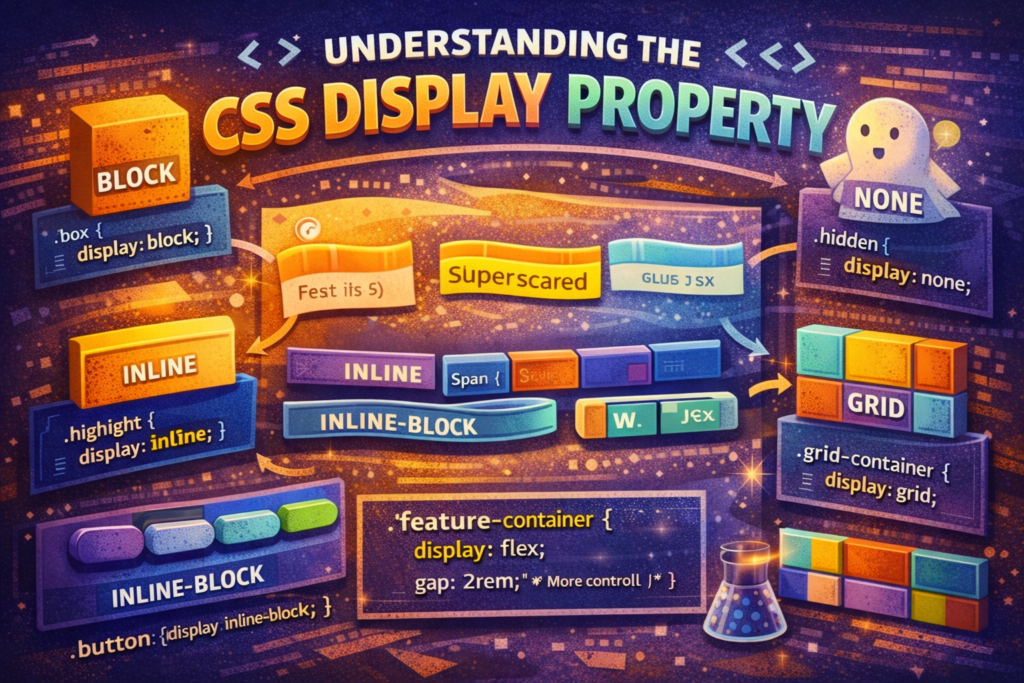
Ever built a simple HTML page, tossed in some CSS for style, and then watched your layout do the exact opposite of what you wanted? Your boxes are stacking instead of sitting side by side, or your beautifully styled buttons are ignoring their width and height. If this sounds familiar, you have just met the most important layout manager in CSS: the display property.
Think of the display property as the personality switch for every HTML element. It is the first thing the browser checks to decide how an element should behave in the layout. Is it a solid, solitary block? Is it a flowing piece of text? Or is it part of a sophisticated flexbox system? Until you understand this property, you are not really doing layout, you are just hoping for the best.
Let us break down what each setting means, when to use it, and how this one line of CSS can completely transform your page.
The Core Personalities of the Display Property
Every tag you use comes with a default display setting. Knowing these defaults saves you hours of confusion.
display: block – The Solo Artist
Block elements are the divas of the layout. They demand their own space. A <div>, <p>, or <h1> starts on a brand new line and stretches out to occupy the full width available, like a brick in a wall. The good news, they fully respect your commands for width, height, margin, and padding.
css
.solid-box {
  display: block; /* What a <div> already is */
  width: 300px; /* It listens! */
  height: 150px;
  margin: 20px auto; /* Centering works beautifully */
  background: aliceblue;
}
display: inline – The Team Player
Inline elements are the chill collaborators. Think <span>, <a>, or <strong>. They behave just like text, flowing next to each other horizontally. Here is the crucial part, they completely ignore width and height. Their vertical margin and padding also act weird, often not pushing other elements around like you would expect. They are for styling words within a sentence, not for building structure.
css
.highlight {
  display: inline; /* What a <span> is */
  background: yellow;
  padding: 2px 5px; /* Top/bottom padding squishes things */
  /* width: 50px; --- This does absolutely nothing */
}
display: inline-block – The Perfect Compromise
This is your go-to fix. An inline-block element gets the best of both worlds, it sits in a horizontal line like an inline element, but it actually listens when you set width, height, padding, and margin. It is the perfect choice for creating a row of buttons, navigation links, or small cards.
css
.pill-button {
  display: inline-block; /* The magic fix */
  width: 120px;
  padding: 10px 20px;
  margin: 0 10px;
  background: slateblue;
  color: white;
  border-radius: 20px;
  text-align: center;
}
display: none – The Ghost
This one is simple but powerful. display: none makes an element vanish completely. It is not rendered, and no space is held for it. Do not confuse it with visibility: hidden, which hides the element but leaves a blank space behind. Use none for toggling visibility without leaving a gap.
The Layout Game-Changers: Flex and Grid
The classic block and inline handle basic document flow, but the real magic of the display property is that it unlocks modern layout systems.
display: flex – For Smart, One-Dimensional Layouts
Apply display: flex to a container, and its direct children become a flexible orchestra you can conduct. You gain instant control over alignment, spacing, and order with properties like justify-content and align-items. It is the ultimate tool for nav bars, card rows, or any set of items you want to align perfectly in a row or column.
css
.toolbar {
  display: flex; /* Flip the switch */
  justify-content: space-around; /* Distribute items evenly */
  align-items: center; /* Line them up vertically */
  padding: 1rem;
  background: #f8f9fa;
}
For the deep dive, the MDN Flexbox guide is the essential resource.
display: grid – For Two-Dimensional Master Plans
When you need control over both rows and columns, display: grid is your answer. It turns a container into a precise grid system. You define the tracks, and then place items exactly where you want them. It is perfect for overall page layouts, dashboards, or image galleries.
css
.dashboard {
  display: grid;
  grid-template-columns: 250px 1fr; /* Sidebar + main area */
  grid-template-rows: auto 1fr auto; /* Header, content, footer */
  gap: 1.5rem; /* Clean gutter control */
  min-height: 100vh;
}
Seeing the Display Property in Action
Let us solve a real problem. You have three feature divs that stubbornly stack vertically.
html
<div class="feature">Fast</div>
<div class="feature">Secure</div>
<div class="feature">Reliable</div>
The quick fix? Make them inline-block.
css
.feature {
  display: inline-block;
  width: 100px;
  padding: 1rem;
  margin: 10px;
  background: #eef;
}
The robust, modern solution? Use a flex container.
css
.feature-wrapper {
  display: flex;
  justify-content: center;
  gap: 2rem; /* No more margin math! */
}
.feature {
  padding: 1rem;
  background: #eef;
  /* Width can be flexible now */
}
The flex method is cleaner and gives you far more control as your design evolves.
How to Think About the Display Property
- Start with the goal. Ask, “How should these elements flow?” Stacked? In a line? Needing precise alignment?
- Set the property on the right element. Remember,
flexandgridare commands you give to a parent container to control its children. - Live in your DevTools. This is the fastest way to learn. Right-click any element, inspect it, and find the
displayvalue in the styles panel. Try changing it on the fly, watchblockbecomeflexand see the layout update instantly. There is no better teacher.
Your Foundational Layout Tool
Getting the display property is not about memorizing keywords. It is about understanding that this single setting is the foundation of every layout decision you will make. It answers the core question, “What kind of citizen is this element in my layout world?”
The best way to learn is to break things. Take an existing page and experiment. Change a navigation menu from inline-block to flex. Try laying out a page with grid instead of floating divs. When you start intentionally choosing the display personality for your elements, you stop wrestling with CSS and start commanding it. That is when you truly begin to build.
New to HTML? Start Here: HTML Tutorial for Beginners: Your Complete Introduction to HTML Basics
New to CSS? Start Here: CSS Introduction: Master 5 Core Concepts Easily
[INSERT_ELEMENTOR id=”122″]

