 Skip to content
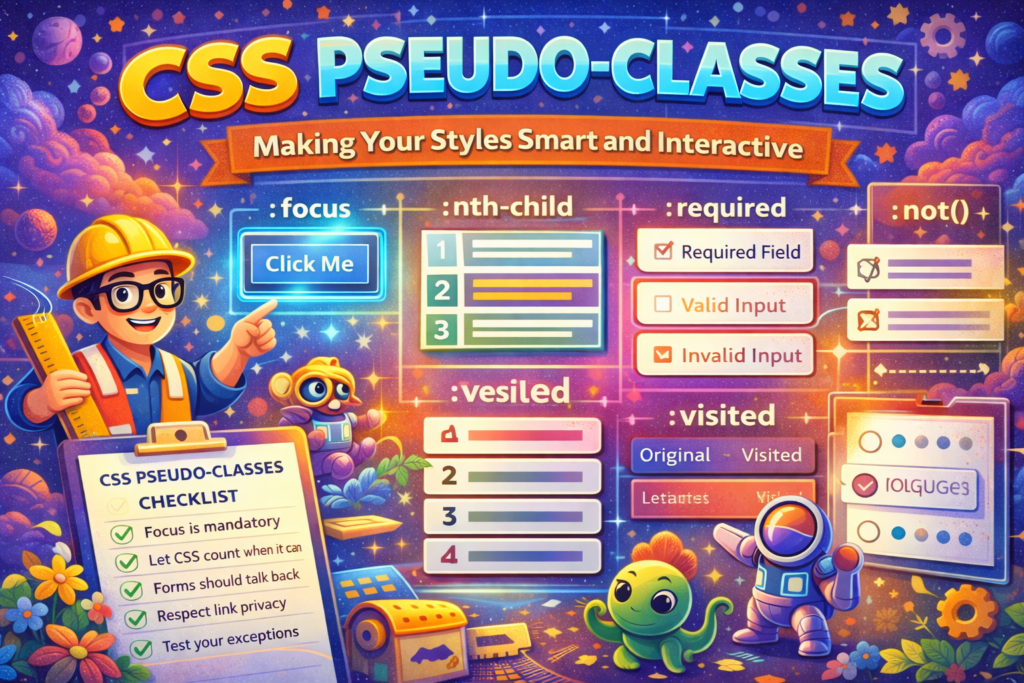
The secret to making your CSS feel responsive and intelligent often lies in mastering CSS Pseudo classes.
You know that moment when you’re tabbing through a website with your keyboard, and you have absolutely no idea which element is selected? Or when you check a box on a form and… nothing happens visually? That awkward silence in your interface is exactly what happens when we underuse CSS Pseudo classes.
Think of them as your CSS’s “if statements.” They’re the selectors that let you style elements not just by what they are, but by what they’re doing or where they are. Is a button being hovered? Is a checkbox checked? Is this list item the first one? That’s the domain of pseudo classes. They’re what make your styles feel alive and responsive instead of just painted on.
Let me show you five ways I use them that go way beyond the basic :hover. These patterns have saved me from writing so much extra JavaScript and HTML classes.
1. The Full Interaction Suite (Not Just Hover)
We all use :hover. But if you stop there, you’re only designing for people with mice. A complete interactive element needs a full set of states.
The rookie move: Just changing the color on hover.
The pro move: Building a feedback loop for every type of interaction.
css
.primary-btn {
  background: #3b82f6;
  color: white;
  padding: 12px 24px;
  border: 2px solid transparent;
  border-radius: 8px;
  transition: all 0.2s;
}

/* 1. For the mouse user */
.primary-btn:hover {
  background: #1d4ed8;
  transform: translateY(-2px);
}

/* 2. For the keyboard user (THIS IS CRITICAL) */
.primary-btn:focus {
  outline: none; /* We're replacing the default, not removing it */
  border-color: #93c5fd;
  box-shadow: 0 0 0 3px rgba(147, 197, 253, 0.5);
}

/* 3. For the moment it's being clicked */
.primary-btn:active {
  transform: translateY(0);
  background: #1e40af;
}
Here’s the thing, that :focus state isn’t optional. It’s how keyboard only users and screen readers navigate your site. Removing the default blue outline without providing an alternative is basically breaking accessibility. The :active state gives that satisfying “pressed” feeling. Together, they tell a complete story.
2. Let the Browser Do Your Dirty Work (:nth-child)
Remember the last time you added a class like .odd or .first to every other item in a list via JavaScript or your templating language? You were working too hard.
The hard way: Manually assigning classes for visual patterns.
The smart way: Letting CSS count for you.
css
/* Zebra stripes, the classic */
.table-row:nth-child(odd) {
  background: #f8fafc;
}

/* Style every 3rd item, starting with the 2nd one */
.gallery-item:nth-child(3n+2) {
  border-color: #8b5cf6;
}

/* Highlight just the first 3 items */
.leaderboard-entry:nth-child(-n+3) {
  font-weight: 800;
  color: #dc2626;
}

/* The last item gets special treatment */
.message-thread li:last-child {
  margin-bottom: 0;
  border-bottom: none;
}
That :nth-child(3n+2) might look like math class, but it’s just a formula. It means “start at item 2, then select every 3rd item after that.” The -n+3 trick for “first 3 items” is one of my favorites. It feels like a CSS hack that actually makes sense. For when you really need to nerd out on the possibilities, the MDN docs on :nth-child are surprisingly readable.
3. Make Your Forms Actually Helpful
A form shouldn’t be a guessing game. With the right pseudo-classes, your forms can visually guide users through what’s happening.
The passive form: Just a bunch of empty boxes.
The helpful form: One that reacts to what you’re doing.
css
/* When a checkbox is checked, make its label obvious */
.permission-checkbox:checked + .permission-label {
  color: #059669;
  font-weight: 600;
}

/* Grey out disabled fields so it's obvious you can't use them */
.shipping-input:disabled {
  background: #e5e7eb;
  cursor: not-allowed;
}

/* Show which fields are mandatory */
.profile-input:required {
  border-left: 4px solid #dc2626;
}

/* Gentle validation hints */
.email-input:valid {
  border-color: #10b981;
}
.email-input:invalid:not(:focus):not(:placeholder-shown) {
  border-color: #ef4444;
}
The + in :checked + .permission-label is the adjacent sibling selector. It says “style the label that’s right next to this checked checkbox.” That :invalid chain is a bit complex, but it prevents the angry red border from showing while the user is still typing (:not(:focus)) or when the field is empty (:not(:placeholder-shown)). It’s polite validation.
4. Links With Memory and Purpose
Not all links are created equal. Some you’ve clicked before. Some jump you to a specific part of the page. Pseudo classes help you style those differences.
The boring approach: Every link looks exactly the same.
The thoughtful approach: Links that acknowledge history and function.
css
.main-content a {
  color: #2563eb;
  text-decoration: underline;
}

/* Visited links - with privacy caveats */
.main-content a:visited {
  color: #7c3aed;
}

/* When someone clicks a #jump-link, highlight where they landed */
.faq-section:target {
  background: #fef3c7;
  padding: 1rem;
  border-radius: 8px;
}
Heads up, browsers are really strict about :visited for privacy reasons. You’re basically limited to changing colors. Don’t try to change layout or add icons. The :target pseudo class is awesome for FAQs or documentation. Click a question, and the answer gently highlights itself. It’s a tiny detail that makes a site feel connected.
5. The “Everything But This” Selector (:not())
Sometimes you want to style most of something, but there’s that one exception. The :not() pseudo class lets you exclude elements right in your selector, keeping your CSS clean.
The messy way: Style everything, then write an override.
The clean way: Exclude the exception from the start.
css
/* Put borders between all list items except the first */
.todo-item:not(:first-child) {
  border-top: 1px solid #d1d5db;
}

/* Make only buttons that ARE clickable show a pointer */
.action-btn:not(:disabled) {
  cursor: pointer;
}

/* Style paragraphs, but not the ones in the footer */
p:not(footer p) {
  line-height: 1.6;
}
:not(:first-child) is so much more readable than applying a top border to all items and then writing .todo-item:first-child { border-top: none; }. It puts the logic right in the declaration. It’s defensive CSS that’s easier to understand six months later.
Your Go To Checklist for CSS Pseudo classes
After getting burned by weird browser behavior and angry accessibility auditors, here’s my checklist for working with CSS Pseudo classes.
- Focus is mandatory.
:focusisn’t a nice-to-have. If you style:hover, you must style:focus. And never useoutline: nonealone. Understanding accessible focus indicators is key. - Let CSS count when it can. Before you reach for JavaScript to add alternating row classes, try
:nth-child(odd). The browser is great at math. - Forms should talk back. Use
:valid,:invalid,:required, and:disabledto give users instant, visual feedback. It reduces frustration. - Respect link privacy. You can’t make visited links bold or change their size. Browsers won’t let you. Stick to color changes.
- Test your exceptions. When you use
:not(), actually check that it’s working. It’s easy to create overly broad exclusions.
Start simple. Go to your current project and check all your buttons. Do they have a proper :focus state? Look at your tables or lists, can you replace any JavaScript zebra-striping with :nth-child?
Getting comfortable with CSS Pseudo classes is like learning to use the full vocabulary of CSS instead of just the basic words. They let your stylesheet react to the user, to the content, to the state of things. That’s when your CSS stops being just decoration and starts being a thoughtful layer of interaction.
New to HTML? Start Here: HTML Tutorial for Beginners: Your Complete Introduction to HTML Basics
New to CSS? Start Here: CSS Introduction: Master 5 Core Concepts Easily
[INSERT_ELEMENTOR id=”122″]

