 Skip to content
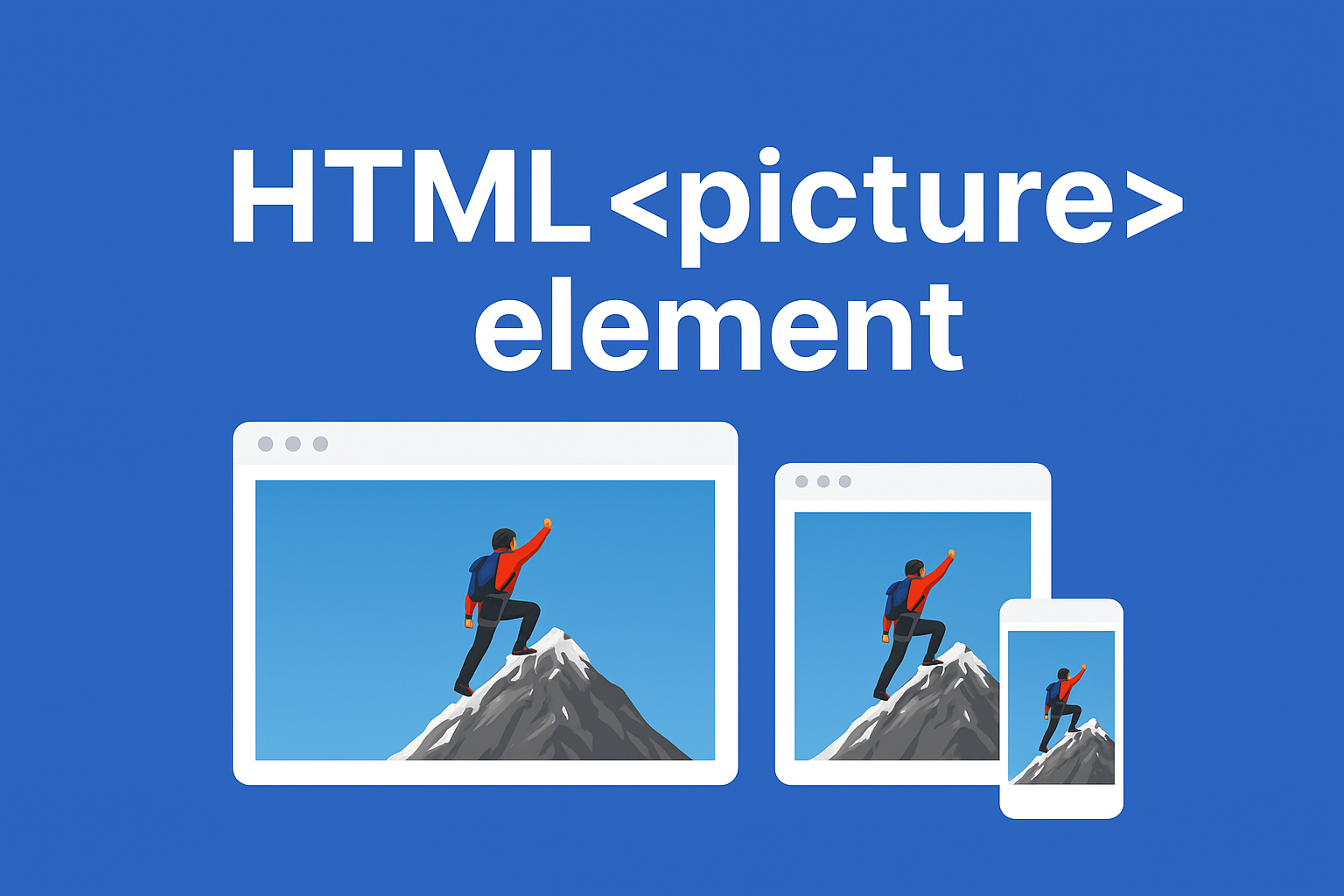
Master the HTML picture element and fix that terrible mobile view for good.
You know the feeling. You’ve spent ages getting that perfect hero image. On your big desktop monitor, it’s a masterpiece the composition is balanced, the text is clear, the feeling is just right. You push the code, lean back, and feel proud.
Then, you check it on your phone. And your heart sinks. The main subject is a tiny, unrecognizable dot. The text is microscopic. The entire emotional punch of the image is gone. Sure, the image “fits” the screen it’s technically responsive but its soul has been utterly lost.
This is exactly where learning to properly use the HTML picture element comes to the rescue. While tools like srcset are great for making sure a picture is sharp on different screens, they can’t change the story the picture tells. The HTML picture element lets you become a film director for your images, choosing the perfect “shot” for every screen.
What Can You Achieve with the HTML Picture Element?
In simple terms, think of the picture element as a smart container for your images. You give it a set of rules and different image options, and the browser plays matchmaker, picking the perfect image for each user’s specific situation.
This powerful element really shines in two big ways:
Art Direction: Telling Better Visual Stories
This is where the picture element truly excels. Instead of just squishing a wide landscape image on a mobile screen, you can provide different crops for different devices. You might use a wide, epic shot for desktop, a tighter square crop for tablet, and an intimate portrait close-up for phones. Each image conveys the same message but is expertly framed for its screen using the HTML picture element.
Serving Modern Image Formats Efficiently
The HTML picture element also elegantly solves the modern format problem. You can offer efficient formats like AVIF and WebP to browsers that support them, while providing JPEG or PNG as reliable fallbacks. This means better performance without breaking compatibility, all thanks to the flexible picture element.
How to Implement the HTML Picture Element
Don’t let the code intimidate you. Using the HTML picture element is straightforward once you understand the basic structure:
html
<picture>
  <source media="(min-width: 1200px)" srcset="hero-desktop.jpg">
  <source media="(min-width: 768px)" srcset="hero-tablet.jpg">
  <img src="hero-mobile.jpg" alt="A climber reaching the summit">
</picture>
Here’s what happens with this HTML picture element setup:
- Desktop users see the wide landscape version
- Tablet users get an optimized square crop
- Mobile users see a tight, focused portrait shot
The real beauty of implementing the HTML picture element is that everything falls back gracefully to the standard <img> tag if needed, ensuring broad compatibility.
When Should You Use the HTML Picture Element?
You don’t need the HTML picture element for every image on your site. That would be overkill. Save it for the moments that matter most.
Use the HTML picture element when:
- The image is critical to user experience (hero images, key banners)
- You need different compositions for different screen sizes
- You want to serve modern formats for better performance
Stick with a regular <img> tag when:
- The image is decorative or simple
- The same composition works well at all sizes
- You don’t have resources to create multiple image versions
Stop Squishing, Start Directing with Picture Element
Learning to use the HTML picture element effectively represents a major step up in how we think about responsive design. It’s about moving beyond just making images fit screens to making them work effectively across all devices.
The HTML picture element gives you the tools to ensure your images look intentional and professional everywhere—from the widest desktop monitor to the smallest mobile phone. Next time you see a hero image that looks broken on mobile, remember that you have the perfect solution available through the versatile HTML picture element.
New to HTML? Start Here: HTML Tutorial for Beginners: Your Complete Introduction to HTML Basics
[INSERT_ELEMENTOR id=”122″]

