 Skip to content
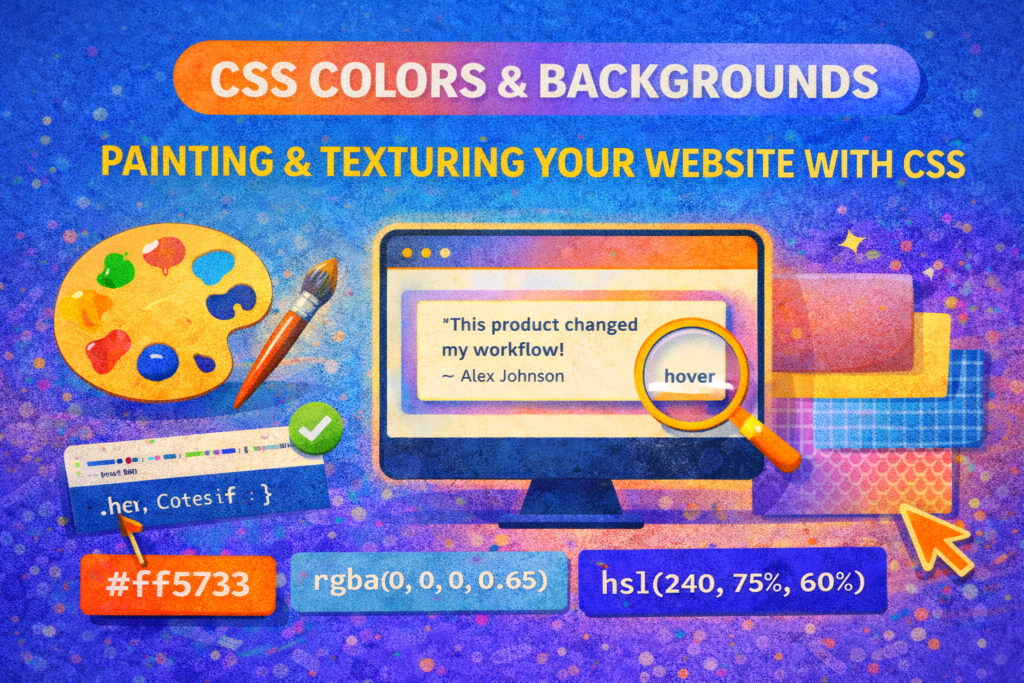
So you have got your website structure up and your layout sorted. Now comes the really enjoyable part, where it stops looking like a blueprint and starts feeling like a real place. This is where CSS colors and backgrounds do the heavy lifting. Think of them as your digital paint, wallpaper, and lighting all rolled into one. They are what take a perfectly functional page and give it personality, mood, and visual punch.
Getting good with these tools is not just about making things attractive, though that is a nice bonus. It is about quietly guiding someone’s eye, making content easy to digest, and building a consistent feel. Let us move past the basic color: green; and dive into the precise and surprisingly creative control CSS gives you.
Your Color Vocabulary for CSS: Speaking in More Than Names
Sure, you can use color names like “blanchedalmond,” but for real work, you need precision. You need systems that make sense when you are trying to match a brand or create a smooth hover effect. Here are the three you will actually use.
1. Hex Codes: The Old Reliable
You have definitely seen these. Things like #ff5733 for a spicy orange. It is a six-digit code for red, green, and blue. #ff0000 is pure red, #00ff00 is green, and so on. It is the universal standard, but let us be honest, it is like speaking in license plate numbers. What color is #8a2be2? You would have to look it up. It is blue-violet, by the way.
2. RGB and RGBA: For Precision and Transparency
This is a bit more human. That same orange is rgb(255, 87, 51). Each number goes from 0 to 255. The real game changer here is RGBA. That ‘A’ stands for Alpha, which means opacity.
css
.overlay {
  background-color: rgba(0, 0, 0, 0.65);
}
That gives you a semi transparent black overlay. It is perfect for darkening a background image behind text or creating subtle shadows without using image files.
3. HSL and HSLA: The One You will Learn to Love
This is my personal favorite and the one that feels most like how we actually think about color. HSL stands for Hue, Saturation, Lightness.
- Hue: The actual color. It is a circle from 0 to 360 (0 is red, 120 is green, 240 is blue).
- Saturation: How intense or gray the color is. 0% is a dull gray, 100% is full vibrancy.
- Lightness: How bright it is. 0% is black, 100% is white, 50% is the pure hue.
css
.btn {
  background-color: hsl(12, 90%, 50%);
}
.btn:hover {
  background-color: hsl(12, 90%, 40%);
}
See the magic? To get a darker shade for the hover state, I just turned down the Lightness. Want a softer, pastel version? Turn down the Saturation. It is incredibly intuitive for creating related color families. HSLA adds the opacity channel, just like RGBA.
Taking Control of Your CSS Background Canvas
Setting a flat background-color is just the opening move. The background property is a whole toolbox for using images, controlling their behavior, and building up layers.
The Essential Background Commands
Imagine you are setting up a hero banner.
css
.hero {
  background-color: #f0f2f5; /* A nice fallback */
  background-image: url('mountains.jpg');
  background-repeat: no-repeat; /* Crucial. Stops it from tiling. */
  background-position: center 30%; /* Focus on the interesting part */
  background-size: cover; /* The most important one. scales to fill */
}
That background-size: cover; is what makes full width image sections work. Use contain if you want the whole image to fit without being cropped. And background-position is your fine-tuning knob.
The Shortcut Syntax
You can condense most of this into one line.
css
.hero {
  /* color, image, repeat, position / size */
  background: #f0f2f5 url('mountains.jpg') no-repeat center / cover;
}
It is concise, but for anything complex, writing the properties out separately is often clearer and easier to debug later.
Leveling Up Your CSS Backgrounds: Gradients and Layers
This is where you move from decorating to actually designing.
CSS Gradients: Your Built-in Design Tool
Forget making gradient images in Photoshop. CSS does it natively with linear-gradient(). They are treated just like background images.
css
.header {
  background: linear-gradient(135deg, #667eea 0%, #764ba2 100%);
}
.card {
  /* A gradient *over* an image for a fade effect */
  background: linear-gradient(to bottom, transparent, rgba(0,0,0,0.7)),
              url('cityscape.jpg');
}
You can make stripes, hard color stops, and soft blends. For the full syntax, the MDN guide on gradients is your best friend.
Stacking Backgrounds Like a Pro
You can layer multiple backgrounds in one declaration. The first one you list sits on top.
css
.badge {
  background:
    url('star.svg') top 10px right 10px no-repeat, /* Top layer: icon */
    radial-gradient(circle at 20% 80%, #fdfc47, #24fe41), /* Middle layer: glow */
    #333; /* Bottom layer: base color */
}
This lets you create complex, textured looks without cluttering your HTML with extra decorative elements.
Bringing It All to Life: A Real-World Card
Let us build a simple testimonial card using these ideas.
html
<div class="testimonial-card">
  <p>"This product changed my workflow!"</p>
  <span class="author">– Alex Johnson</span>
</div>
css
.testimonial-card {
  /* Layered background: a noise texture over a soft gradient */
  background:
    url(data:image/svg+xml;base64,...), /* a subtle SVG noise pattern */
    linear-gradient(135deg, hsl(240, 30%, 97%), hsl(240, 20%, 92%));
  color: hsl(240, 25%, 20%); /* Deep blue-gray text */
  padding: 2rem;
  border-radius: 16px;
  border-top: 4px solid hsl(16, 100%, 60%); /* A warm orange accent */
}
.author {
  color: hsl(240, 25%, 40%); /* A lighter shade of the text color */
}
Notice how using HSL makes it effortless to create a harmonious color scheme. The text, border, and accent feel connected.
The Non-Negotiable Rule: Accessibility
With all this visual power comes a big responsibility. People need to be able to read your content. The contrast between your text and its background is not a gentle suggestion, it is a requirement.
A light gray text on a white background might look “minimal,” but it is a headache for many readers. Always check your contrast ratios with a tool like the WebAIM Contrast Checker. You are generally aiming for a ratio of at least 4.5:1 for normal text. A beautiful gradient fail is still a fail if the text is unreadable.
Your Turn to Experiment with CSS Colors
The best way to get fluent is to play. Open a CodePen or your dev tools and just try things.
- Take one base HSL color and create a button’s hover, active, and disabled states just by adjusting lightness.
- Try to recreate a gradient you see on a popular site.
- Use a subtle, repeating SVG pattern as a background texture.
Remember, these are not just frivolous styles. They are fundamental tools for creating clear, engaging, and accessible interfaces. Now you have got the palette, go make something that looks good and works even better.
New to HTML? Start Here: HTML Tutorial for Beginners: Your Complete Introduction to HTML Basics
New to CSS? Start Here: CSS Introduction: Master 5 Core Concepts Easily
[INSERT_ELEMENTOR id=”122″]

