 Skip to content
You know that phase where every website looked like it was built with a ruler and a single shade of gray? The flat design era. Clean? Sure. But man, I can’t tell you how many times I’d squint at a screen full of boxes, my cursor hovering, thinking… “Is that a button, or just a colorful header?” No clue.
That confusion right there is exactly why I became a bit obsessed with CSS shadows and effects. The moment I stopped treating them as optional “pretty stuff” and started seeing them as fundamental tools for communication, everything changed. My interfaces went from “functional but flat” to “oh, this feels right to use.”
It makes sense if you think about it. We navigate the real world using light and shadow. A shadow tells your brain, “This object is hovering above the surface.” A highlight whispers, “The light is coming from over here.” CSS shadows and effects let us replicate that on a screen. They’re not decoration; they’re a silent language that says “click here,” “look at this,” or “this is different” without a single word of copy.
Don’t worry, I’m not going to turn you into a visual effects artist. My goal is simpler: to give you a handful of reliable, practical recipes I use every day to solve real UI problems. We’ll go from the absolute basics (what do all these darn numbers mean?) to some neat tricks that add that professional polish. You’ll walk away with a toolkit that builds user trust through clarity and depth.
Getting Started: The Three Tools You Actually Need
Before we cook anything up, let’s get familiar with the ingredients. You really only need to be buddies with three CSS properties: box-shadow, text-shadow, and filter. Let’s break them down over a virtual coffee.
box-shadow: Your Trusty Workhorse
This is the one you’ll use 80% of the time. The syntax looks intimidating, but I promise it’s just a simple list of instructions.
css
box-shadow: [horizontal] [vertical] [blur] [spread] [color] [inset?];
Here’s the plain English translation I wish I’d had:
- Horizontal & Vertical: Where’s your light source?
4px 8pxmeans the shadow is 4 pixels to the right and 8 pixels down. This gives you that classic top left light source feel. Want the light from the bottom right? Use negatives:-4px -8px. - Blur: How soft is it?
0pxis a hard, graphic line.16pxis a soft, dreamy glow. Higher number = softer light. - Spread: This one’s weird. It grows (positive) or shrinks (negative) the shadow before the blur is applied. I honestly only use it for specific effects, like making a perfect circular glow.
- Color: Use
rgba()here. Every. Single. Time. That alpha channel (opacity) is your secret weapon for natural looking shadows. Pure black (#000) almost always looks fake. - Inset: The game changer. This paints the shadow inside the element’s box, making it look sunken or engraved.
text-shadow: The Unsung Hero of Readability
Much simpler, because text is simpler.
css
text-shadow: [horizontal] [vertical] [blur] [color];
Its MVP job? Making text legible. Throw a subtle dark text-shadow on white text over a busy hero image, and boom, instant readability. Any vintage “letterpress” effect is just a happy bonus.
filter: drop-shadow(): For When box-shadow Just Doesn’t Get It
This is the specialist you call for tricky jobs.
css
filter: drop-shadow(4px 8px 12px rgba(0, 0, 0, 0.3));
Here’s the magic: box-shadow sees a boring rectangle. drop-shadow() sees the true shape of your element. A circular avatar gets a perfect circular shadow. A star shaped SVG gets a star shaped shadow. It’s a lifesaver for icons and non rectangular stuff. The MDN docs on filter are great for deeper dives.
Got the tools down? Awesome. Now let’s use them to fix common problems.
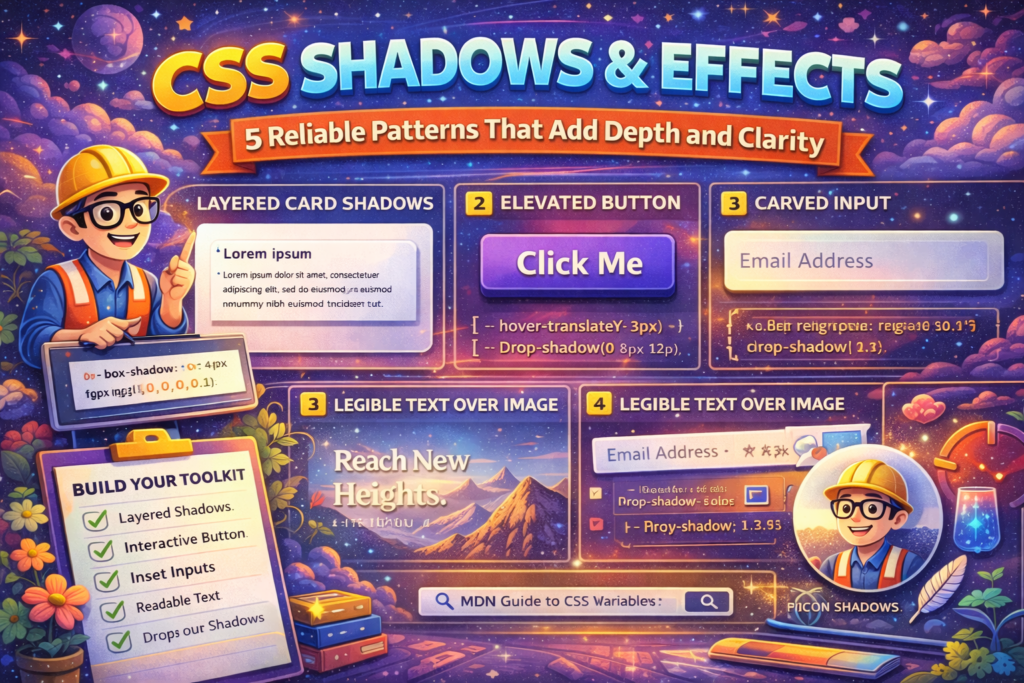
Five Patterns I Use Constantly (Steal These)
These aren’t just demos. Each one solves a specific UI issue I’ve bumped into on real projects.
Pattern 1: The “This Feels Real” Layered Shadow
The Problem: Your card looks like a paper cutout pasted on the screen. It lacks weight.
The Fix: Real shadows have layers. We mimic that with multiple shadows.
css
.card {
  background: white;
  border-radius: 16px;
  padding: 2rem;
  box-shadow:
    0 1px 1px rgba(0,0,0,0.05),     /* Tight contact layer */
    0 10px 36px rgba(0,0,0,0.1),    /* Main depth layer */
    0 20px 80px -20px rgba(0,0,0,0.15); /* Wide ambient layer */
}
Why it works: The first sharp shadow simulates the object touching the surface. The second gives it lift. The third, wide blur makes it feel like it exists in a space with ambient light. It just feels physically substantial.
Pattern 2: The “Yes, You Can Click Me” Button
The Problem: A user hovers over your button… and nothing. It feels dead.
The Fix:* Combine a shadow change with a tiny movement. This one’s my favorite.
css
.btn {
  background: #4f46e5;
  color: white;
  padding: 1rem 2rem;
  border-radius: 8px;
  box-shadow: 0 4px 12px rgba(79, 70, 229, 0.3);
  transition: transform 0.25s ease, box-shadow 0.25s ease;
}

.btn:hover {
  transform: translateY(-3px);
  box-shadow: 0 12px 24px rgba(79, 70, 229, 0.4);
}

.btn:active {
  transform: translateY(0);
  box-shadow: 0 4px 12px rgba(79, 70, 229, 0.3);
}
Why it works: The hover state makes the button physically rise toward the cursor. The larger, softer shadow reinforces that movement. The active state (when clicking) snaps it back down. It’s a tiny piece of delight that screams interactivity.
Pattern 3: The “Carved-In” Input Field
The Problem: Your text input looks like it’s sitting on top of the form. It should feel like you type into it.
The Fix: Hello, inset.
css
.input-field {
  background: #f9fafb;
  border: 2px solid #e5e7eb;
  border-radius: 8px;
  padding: 0.75rem;
  box-shadow: inset 0 2px 4px rgba(0,0,0,0.05);
}
Why it works:* That subtle inner shadow darkens the top edge, creating an illusion of depth like the field is recessed. It’s a small touch that provides huge visual affordance.
Pattern 4: Text That Stays Readable (Anywhere)
The Problem:* Your gorgeous hero image has a bright sky, and your white headline vanishes into it.
The Fix:* A text-shadow contrast shield.
css
.hero-title {
  color: white;
  font-size: 3.5rem;
  font-weight: bold;
  text-shadow: 0 2px 8px rgba(0, 0, 0, 0.6);
}
Why it works:* It creates a dark, blurred “buffer zone” around each letter. No matter what color the background pixel is, the text stays legible. It’s the easiest accessibility win you’ll get all week.
Pattern 5: The Right Shadow for Icons & Logos
The Problem:* You put a box-shadow on a round avatar and get… an ugly square shadow. So frustrating.
The Fix:* filter: drop-shadow() understands shapes.
css
.avatar {
  width: 80px;
  height: 80px;
  border-radius: 50%;
  filter: drop-shadow(0 8px 16px rgba(0, 0, 0, 0.2));
}
Why it works:* It respects transparency and the actual shape. Perfect for circular avatars, SVG icons, or your fancy logo. No more hacky solutions.
The Bottom Line
Learning to wield CSS shadows and effects is like learning to describe space and light. You’re not just styling boxes anymore; you’re building a relationship between elements and establishing hierarchy.
Start small. This week, add the layered shadow to your main card component and the interactive lift to your primary button. Next week, audit your hero images and add the readability text-shadow. The best results are the ones people don’t consciously notice, they just find the interface clearer and more intuitive. That’s the real power. Now go make something that feels as good as it functions.
New to HTML? Start Here: HTML Tutorial for Beginners: Your Complete Introduction to HTML Basics
New to CSS? Start Here: CSS Introduction: Master 5 Core Concepts Easily
[INSERT_ELEMENTOR id=”122″]

