 Skip to content
Stop Letting Embedded Content Run Wild on Your Site
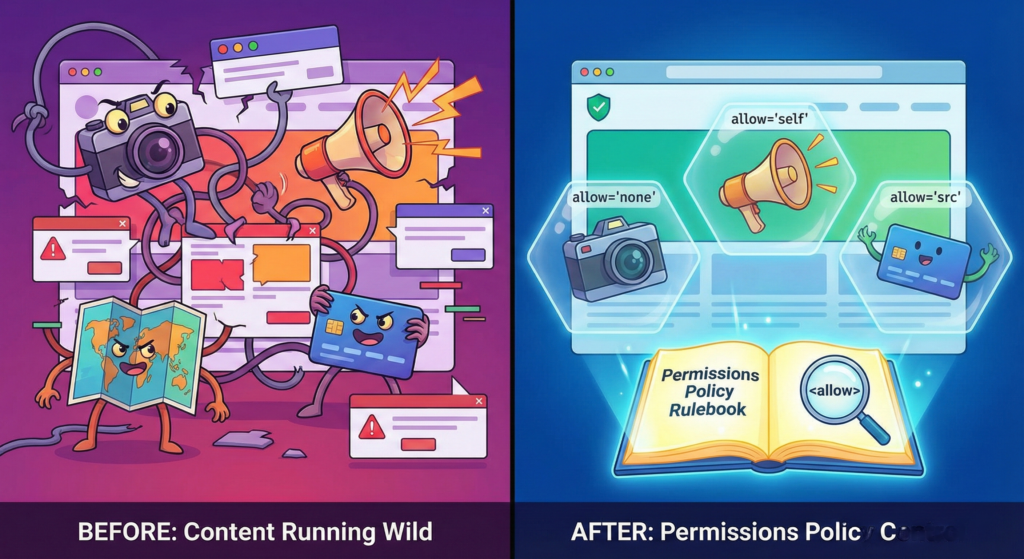
Understanding and implementing a Permissions Policy with the <allow> attribute is crucial for modern web security. Okay, let’s be honest for a second. Building a modern website feels like you’re constantly borrowing power and hoping nothing breaks. You drop in a payment form from Stripe, embed a Google Map, or add a YouTube video. And then? You just cross your fingers and hope that third party code behaves itself. Even your own scripts might accidentally try to access something they shouldn’t, like the user’s camera.
It’s like building a house and handing every subcontractor a master key to every room. Not exactly a secure feeling, right?
For years, we’ve just accepted this. We’ve relied on browser permission pop-ups and hoped users would click “Block.” But what if you could write the rulebook? What if you could declare, right in your HTML, exactly what any piece of content, embedded or your own, is allowed to do?
Welcome to the world of Permissions Policy. And one of its simplest, most powerful tools is the humble <allow> attribute on your iframes. This isn’t just another obscure security header. It’s your direct line to sandboxing third party junk and locking down your own site’s capabilities from the get go.
From Feature Policy to Permissions Policy: A Quick History
First, a tiny bit of history so you’re not confused. This whole idea started as Feature Policy. It was a great concept: a way to control browser features via a header or an attribute.
Permissions Policy is the new, improved version. Think of it as Feature Policy 2.0. It covers more ground, handling not just “features” but also the powerful APIs that request user permissions. The old name is still floating around in docs, but Permissions Policy is what you should call it now. The core idea is the same, just supercharged.
How the Permissions Policy <allow> Attribute Works
The easiest place to start is with iframes. The <allow> attribute is built right into the iframe tag. It lets you set the rules for the content inside that specific iframe. This is a game changer for ads, videos, widgets, you name it.
The syntax is just a straightforward list. You’re basically writing a rulebook for that little box on your page.
html
<iframe
    src="https://some-embedded-map.com"
    allow="geolocation 'none'; camera 'none'; autoplay 'none'">
</iframe>
In this example, you’re embedding a map, but you’re telling the browser: “Listen, whatever loads inside this iframe is not allowed to ask for the user’s location, use the camera, or autoplay video.” Even if the map’s code tries to run getCurrentPosition(), it will fail silently. No annoying pop up for your user.
Here’s what your rules can say:
'none': Completely banned inside this iframe.'self': Allowed only if the iframe’s content comes from the same origin as your main site.'src': Allowed only if it matches the iframe’ssrcURL (this is the default for a lot of things).*: Allowed in this iframe and any iframes inside it (be very careful with this one).
Why Bother? The <allow> Attribute Solves Real Problems
This isn’t just theory. Using the Permissions Policy <allow> attribute fixes actual problems you’ve definitely faced:
- Kills Nuisance Autoplay: Remember when an ad would suddenly blast audio?
allow="autoplay 'none'"on that ad iframe stops it dead. - Stops Permission Spam: A random support chat widget has no business asking for location.
allow="geolocation 'none'"locks that down and keeps your users from getting spammed. - Cuts Your Attack Surface: If a bad script slips into an ad network, it can’t access the microphone or camera if you’ve already said “no.”
- Protects Privacy Proactively: You’re not just blocking pop-ups, you’re preventing the request from ever happening. It’s a clean, silent win for user privacy.
The Big Gun: The Site Wide Permissions Policy HTTP Header
The <allow> attribute is perfect for rules on a specific iframe. But the real power move is the Permissions-Policy HTTP header. This sets the rules for your entire website (your main page and all iframes from your own domain).
This is where you set your global defaults. You configure this on your web server.
A strict, good-for-most-sites header might look like this:
text
Permissions-Policy: geolocation=(), camera=(), microphone=(), autoplay=(), fullscreen=(self)
geolocation=(): The empty parentheses mean “disabled for everyone, everywhere.”fullscreen=(self): The feature is allowed only for your own site’s content.
This header is your baseline law. The <allow> attribute on an individual iframe can only make those rules stricter for that frame, never more lenient. For a complete list of what you can control, the official documentation on MDN is the best resource.
Your Action Plan: Implementing Permissions Policy
Let’s say you’re running a blog with YouTube videos, a third-party comment system, and you host your own podcast player.
Step 1: Lock It Down Globally (on your server).
Start by saying “no” to everything. Then carefully allow what you need.
text
Permissions-Policy: geolocation=(), camera=(), microphone=(), autoplay=(self), payment=()
Translation: “Nobody gets location, camera, or mic by default. Only my own pages can autoplay. No payment APIs anywhere.”
Step 2: Carve Out Exceptions with <allow> on Specific Iframes.
- For YouTube Videos: They need to go fullscreen and potentially autoplay (if the user clicks). We use the specific
allowlist YouTube provides, which is a legacy format but still works.html<iframe src=”https://youtube.com/embed/video-id” allow=”accelerometer; autoplay; clipboard-write; encrypted-media; gyroscope; picture-in-picture; fullscreen” allowfullscreen> </iframe> - For a Third-Party Comment Widget: This gets the maximum lockdown. It shouldn’t do anything fancy.html<iframe src=”https://my-comment-service.com/widget” allow=”none”> </iframe>
Step 3: Enable Features for Your Own Tools.
Your podcast player doesn’t need anything special. But if you had a video recording tool that did need the camera, you’d need to enable it. Since your global header blocks it, you could adjust the header to camera=(self) or, if you can’t edit server headers, use a meta tag on that specific page.
html
<!-- In the <head> of your recording tool page -->
<meta http-equiv="Permissions-Policy" content="camera=(self), microphone=(self)">
Watch Out For These Permissions Policy Gotchas
- Don’t Break Your Own Stuff: The #1 mistake is turning on a super-strict global policy that blocks a feature your own site needs. Test in development first.
- Policies Cascade Down: A strict policy on a parent iframe applies to everything inside it. A nested iframe can’t ask for more permissions than its parent gave it.
- Use the Reporting Feature: You can add
report-toto your header to get sent reports anytime something tries to break the rules. It’s like having a security camera. This aligns with best practices for monitoring policy violations as part of a broader security strategy. - It’s a Team Player: This works alongside your Content Security Policy (CSP). CSP controls what can load. Permissions Policy controls what those things can do.
The Bottom Line: You’re in Control Now
Relying on reactive security – cleaning up after something goes wrong – is exhausting and often too late.
Permissions Policy and the <allow> attribute are about declarative security. You’re stating your rules upfront: “This is what’s allowed on my site.”
It puts you back in the driver’s seat. You’re not just hoping that embedded content plays nice, you’re defining the boundaries of the playground. Using these tools is a mark of a professional, thoughtful, and secure website. Start with a strict global header, use the <allow> attribute to make precise exceptions, and enjoy the peace of mind that comes from actually having a rulebook.
New to HTML? Start Here: HTML Tutorial for Beginners: Your Complete Introduction to HTML Basics
[INSERT_ELEMENTOR id=”122″]

