 Skip to content
The Summary Element in Context (ARIA vs. Native): Your HTML’s Secret Accordion
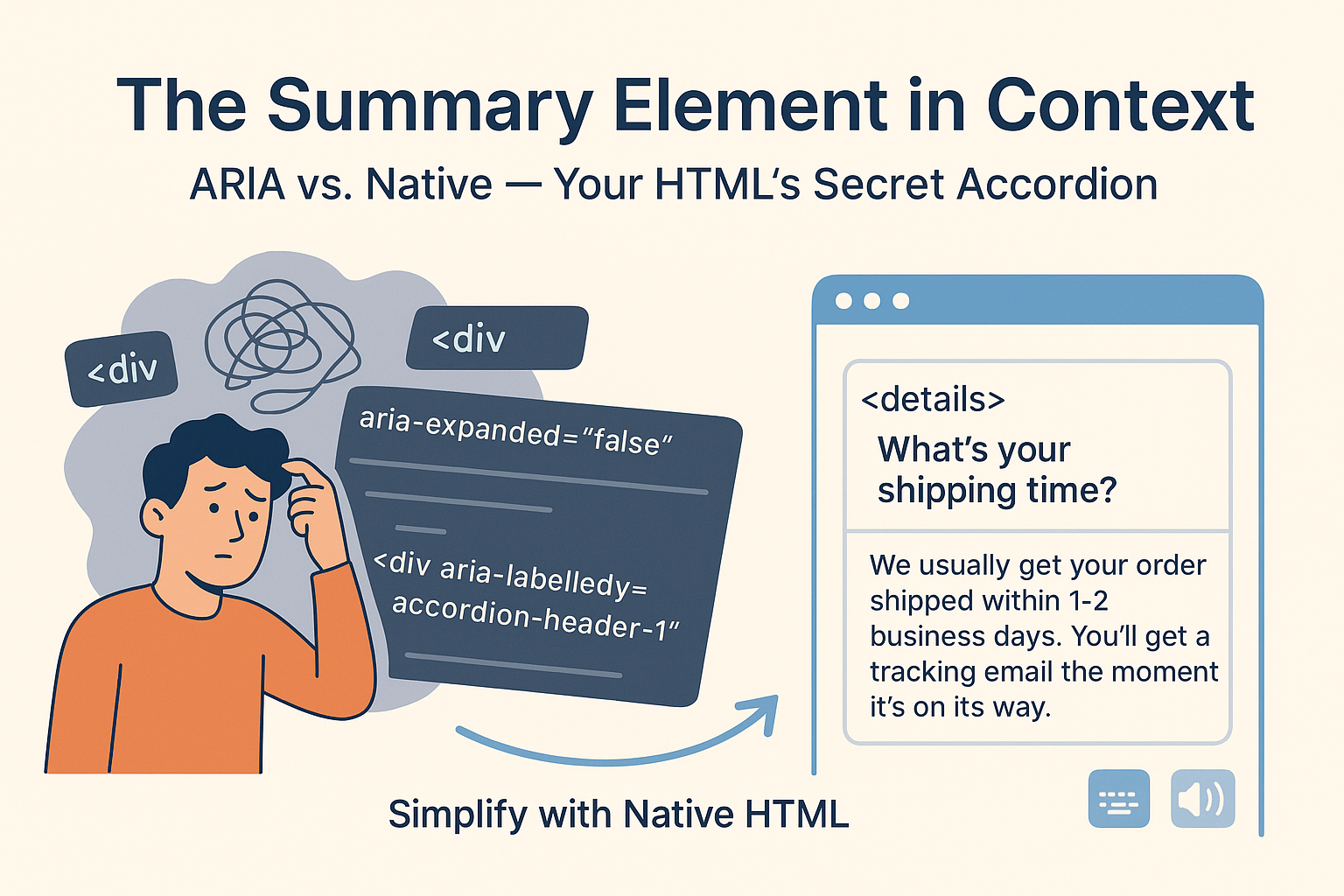
Understanding the summary element in context (ARIA vs. Native) can save you from over-engineering common interface patterns. You know the drill. The designer hands over a mockup with a neat little FAQ section. You see those clickable questions that drop down to reveal answers. Your brain, trained by years of habit, immediately starts drafting the plan: a div for the header, a click handler in JavaScript, some CSS for the open and closed states, and don’t forget all those ARIA attributes like aria-expanded and aria-controls.
It feels like a lot, because it is. You’re essentially building a small machine from scratch every single time.
But what if I told you the browser has had a built-in, ready-to-use accordion widget this whole time? I’m not talking about a fancy framework. I’m talking about honest to goodness HTML. The key to this is understanding the summary element in context (ARIA vs. Native). It’s been right under our noses, and it solves about 90% of these problems with almost zero effort.
Let’s break down this native powerhouse and see when it’s the right tool for the job, and when you might still need to roll up your sleeves.
Understanding the Native Power of the Summary Element
Think of the details tag as a magic box. By default, it’s closed. Inside, you put two things: a summary tag, which acts as the clickable label, and then whatever other content you want to hide and reveal.
The real beauty here? The browser does all the hard work. The clicking, the toggling, the keyboard support (yep, it works with Tab and Enter out of the box)—it’s all handled. You don’t need JavaScript. It just works.
Here’s all it takes:
html
<details>
  <summary>What's your shipping time?</summary>
  <p>We usually get your order shipped within 1-2 business days. You'll get a tracking email the moment it's on its way.</p>
</details>
That’s it. Seriously. The browser even adds that little toggle triangle for you. It’s what we call “declarative”, you just declare what you want, and the browser makes it happen. It’s beautifully simple.
And the accessibility? It’s not just added on; it’s baked right in. Screen readers like NVDA or VoiceOver understand this component perfectly. They’ll automatically tell a user, “Hey, this is a disclosure triangle, it’s collapsed,” and they’ll read the summary as the label. You get all of that for free, without wrestling with a single ARIA attribute. It’s the most robust accessibility you can get because it’s built directly into the platform. The MDN Web Docs on the details element provide a great technical deep dive into this built-in functionality.
The ARIA Alternative: A Custom Marathon
Now, let’s rewind. Before these tags were well-supported, or for times when you need something super custom, we had to build these by hand. This is the path you’re probably more familiar with, and it’s where the discussion of the summary element in context (ARIA vs. Native) becomes critical.
It usually looks something like this:
html
<div class="accordion">
  <button
    id="accordion-header-1"
    aria-expanded="false"
    aria-controls="accordion-panel-1"
  >
    What's your shipping time?
  </button>
  <div
    id="accordion-panel-1"
    aria-labelledby="accordion-header-1"
    hidden
  >
    <p>We usually get your order shipped within 1-2 business days...</p>
  </div>
</div>
And that’s just the HTML. You still need CSS to style it and, most importantly, JavaScript to make it actually do anything. The script has to find the button, listen for a click, toggle the aria-expanded state from “false” to “true”, and show or hide the panel.
So, what’s the problem with this approach?
- It’s fragile: It’s surprisingly easy to mess up. Forget to update aria expanded? The screen reader now gives false information. A typo in the aria-controls ID? The connection is broken.
- It’s a maintenance headache: If you need to change the behavior later, you’re digging through HTML, CSS, and JavaScript files.
- It’s just more work: You’re writing code to recreate something the browser can already do.
Making the Choice: When to Use Native vs. ARIA
This isn’t about one being “better” than the other. It’s about using the right tool for the job. Your decision on the summary element in context (ARIA vs. Native) should be guided by your project’s specific needs.
Reach for the native summary element when:
- You’re building a standard FAQ, a simple settings panel, or a “read more” section.
- You love the idea of it working even if JavaScript fails or hasn’t loaded yet.
- You want rock-solid, can’t-mess-it-up accessibility without the fuss.
It’s okay to build a custom ARIA widget when:
- The design calls for a specific, complex animation that the native element can’t handle.
- You need a connected accordion where opening one item closes the others (this isn’t the default for details).
- You’re stuck supporting a truly ancient browser that doesn’t know these tags exist (but honestly, that’s a shrinking list).
Enhancing the Native Summary Element
The cool thing is you don’t have to leave the native element completely as-is. You can dress it up a bit. This is a great way to get the best of both worlds in the summary element in context (ARIA vs. Native).
Don’t like the default triangle? You can style your own icon with CSS:
css
details summary {
  list-style: none; /* Kills the default marker */
  padding-left: 1.5rem; /* Make space for our custom one */
  position: relative;
}

details summary::before {
  content: "▶"; /* Our new closed icon */
  position: absolute;
  left: 0;
  transition: transform 0.2s ease;
}

details[open] summary::before {
  content: "▼"; /* Our new open icon */
}
Want to add a smooth slide-down animation? It takes a bit of JavaScript trickery since the native toggle can’t be animated with CSS, but it’s totally possible by toggling a class and using max-height. For complex patterns like this, the WAI ARIA Authoring Practices Guide on Accordions can be a helpful reference, even when you’re starting with the native element.
Conclusion: Embracing the Native Summary Element
Using the summary and details elements is a perfect example of a smart developer principle: use the simplest tool that gets the job done. The entire discussion of the summary element in context (ARIA vs. Native) leads us to a clear conclusion.
Automatically reaching for JavaScript and ARIA for every accordion is like using a sledgehammer to push in a thumbtack. It works, but it’s messy, inefficient, and you risk breaking the wall.
By choosing the native HTML elements, you’re building on a solid, tested foundation. You’re writing less code, which means fewer bugs. You’re creating something that’s accessible from the moment you write it. Save your custom ARIA work for the truly unique challenges. Your future self, the one who doesn’t want to debug a tangled mess of code at 2 AM, will be incredibly grateful you understood the summary element in its proper context.
New to HTML? Start Here: HTML Tutorial for Beginners: Your Complete Introduction to HTML Basics
[INSERT_ELEMENTOR id=”122″]

